
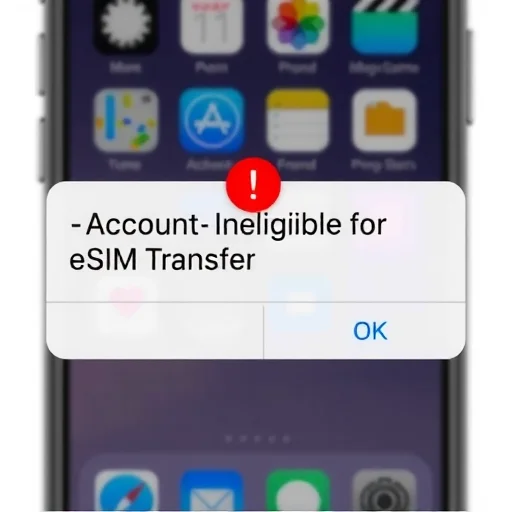
If you’re trying to transfer your Verizon service to a new iPhone or activate an eSIM and you see the error message “Account Ineligible for eSIM Transfer,” you’re not alone. This frustrating message usually appears when Verizon’s system determines that your account or device doesn’t meet the requirements for an eSIM transfer. The good news is that in most cases, it’s fixable. This guide explains why this error happens and provides step‑by‑step solutions to get your eSIM activated.
First, let’s understand what the error means. When you attempt to transfer your Verizon service to a new device using the eSIM Quick Transfer feature (during iPhone setup or via Settings), Verizon’s systems check several conditions. If any of them aren’t met, you’ll see the “Account Ineligible” message. Common causes include:
Your account type doesn’t support eSIM (some older plans or business accounts may have restrictions).
Your device isn’t properly unlocked or isn’t eSIM‑compatible.
There’s an outstanding balance or account issue.
You’re trying to transfer to a device that isn’t yet eligible for eSIM activation (e.g., a brand‑new device not yet in Verizon’s system).
The transfer is being attempted too soon after a recent activation.
So, what can you do to resolve it? Here are the most effective solutions, from simplest to more involved.
**1. Try the transfer again later.** Sometimes the error is temporary, especially if you’ve just set up a new device or recently made changes to your account. Wait an hour or two and try again. This has worked for many users.
**2. Use the Verizon app instead of the Quick Transfer.** Instead of using the built‑in iPhone eSIM transfer, open the My Verizon app on your new phone (if you can get it on Wi‑Fi). Look for the option to “Activate a new device” or “Switch device.” Follow the prompts to activate eSIM. This often bypasses the Quick Transfer restriction.
**3. Activate via the Verizon website.** On a computer or your phone’s browser, log into your Verizon account. Go to “My Devices” and look for the option to “Activate a new device.” You’ll need the IMEI of your new phone. Verizon will then send an eSIM activation to your device. You may receive a notification to complete the setup.
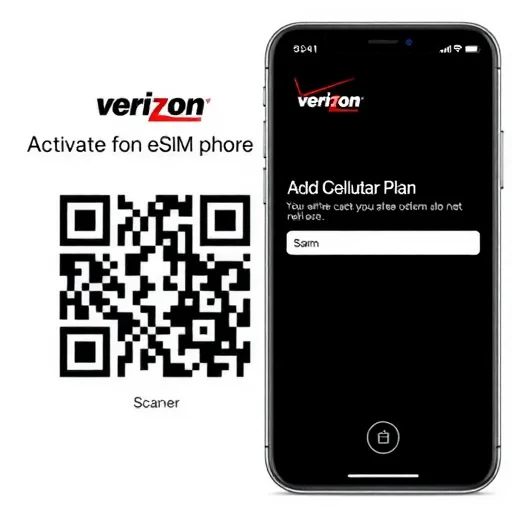
**4. Request a QR code from Verizon.** If the automated methods fail, you can ask Verizon to provide a QR code for eSIM activation. Contact Verizon customer service (call or chat) and explain that you need an eSIM activation QR code. They may email it to you or provide it over the phone. On your phone, go to Settings > Cellular > Add Cellular Plan and scan the QR code. This method works even when Quick Transfer doesn’t.
**5. Check if your account is eligible.** Some older Verizon plans (like legacy plans) may not support eSIM. If you’re on an older plan, you might need to switch to a modern plan (e.g., 5G Start, Play More, Do More, etc.) to enable eSIM. You can check your plan in the My Verizon app or by calling customer service. If your plan is ineligible, ask about switching to a plan that supports eSIM.
**6. Verify your phone is unlocked and compatible.** If you’re trying to transfer to a phone that is locked to another carrier, eSIM transfer will fail. Ensure your new phone is unlocked. Also, confirm that your phone supports eSIM. Most iPhones from XS/XR onward and many Android phones do, but it’s worth checking.
**7. Ensure the device is in Verizon’s system.** If you have a brand‑new phone, especially one not purchased from Verizon, it may take a day or two for the IMEI to be recognized in Verizon’s database. Try activating the next day, or contact Verizon to have them add the IMEI manually.
**8. Check for account issues.** Outstanding balances, a suspended account, or recent changes like a new SIM activation can cause eligibility issues. Log into your account to ensure everything is in order. If you recently activated a new physical SIM, you may need to wait a day before converting to eSIM.
Let’s look at a few real‑world examples.
**Case 1: New iPhone from Apple.** A user bought a new unlocked iPhone directly from Apple, but during setup, the eSIM transfer from their old Verizon iPhone failed with the “Account Ineligible” error. They tried the My Verizon app on the new phone, and it worked immediately—the app recognized the device and activated eSIM in minutes.
**Case 2: Legacy plan.** Another user was on an old Verizon plan that didn’t support eSIM. After calling customer service, they switched to a current 5G plan. Once the plan change took effect, they were able to transfer their number to eSIM without issue.
**Case 3: QR code solution.** A user attempted multiple times with Quick Transfer and the app, but kept getting the error. They called Verizon support, explained the situation, and received an eSIM QR code via email. Scanning the QR code on their new phone completed the activation in seconds.
If you’re still having trouble after trying these steps, contacting Verizon support is your best bet. Ask for the “eSIM activation” team specifically—they are trained to handle these issues. Have your account PIN, the IMEI of your new phone, and your old phone handy. They can manually push the eSIM profile to your device.
In summary, the “Account Ineligible for eSIM Transfer” error on Verizon is usually solvable. Start with the simplest fixes: try again later, use the My Verizon app, or activate via the website. If those fail, request a QR code from support. Check your plan eligibility and ensure your device is unlocked and compatible. With patience and the right approach, you’ll have your eSIM activated and be back online. The “Account Ineligible for eSIM Transfer” error on Verizon typically occurs due to plan restrictions, device recognition issues, or temporary system glitches. Solutions include using the My Verizon app, activating via the website, requesting a QR code from support, checking plan eligibility, and ensuring the device is unlocked and recognized. Most cases are resolvable without visiting a store.
eSIMActivationFixFINISHED
I was stuck on this for hours. Finally called Verizon and asked for an eSIM QR code. They emailed it to me, I scanned it, and it worked. Don’t waste time—just get the QR code.
Got the “Account Ineligible” error when setting up my new iPhone. Tried the My Verizon app on the new phone and it worked instantly. No idea why Quick Transfer failed, but the app saved the day. Great tip!
Important tip: If you’re on an old Verizon plan, it might not support eSIM. I had to switch to a newer 5G plan. Once I did, the transfer worked. Check your plan first!
I bought a new unlocked phone, but Verizon’s system didn’t recognize the IMEI right away. I waited a day, then tried again, and it worked. Sometimes you just need to give it time.
The Verizon website activation method worked for me. Logged into my account, selected “Activate new device,” entered the IMEI, and got a notification on my phone to finish setup. No error.