
You’ve been traveling the world, testing out different carriers, or maybe you just bought a second-hand iPhone and want to start with a completely clean slate. Now you’re looking at a list of eSIM profiles in your Settings app and wondering if there’s a quick way to wipe them all out at once. The core solution is straightforward: while there’s no single “delete all” button for eSIMs on iPhone, removing multiple profiles is a quick, sequential process that takes just a few seconds per profile. In this guide, I’ll walk you through exactly how to delete all eSIMs on your iPhone, explain what happens when you remove them, and cover the important steps to take before wiping your device clean—especially if you’re preparing to sell or give away your phone.
First, let’s clarify what an eSIM is and what deleting it actually does. An eSIM—embedded SIM—is a digital SIM built directly into your iPhone. Instead of inserting a physical card, you download a cellular plan wirelessly via a QR code, carrier app, or manual activation. When you delete an eSIM profile from your iPhone, you’re simply removing that digital connection from your device. You’re not canceling your service with the carrier—the plan itself remains active on the carrier’s end. Deleting an eSIM is essentially like taking a physical SIM card out of your phone. If you ever want to use that same plan again, you’ll typically need to re-download the eSIM profile via the original QR code or your carrier’s app. This distinction is crucial: if you’re selling your iPhone, deleting your eSIM profiles is an essential privacy step. If you’re just cleaning up old travel eSIMs that have expired, deleting them frees up space in your eSIM storage and removes clutter from your cellular settings.
Now, let’s get into the step-by-step process for deleting eSIMs on iPhone. The process is identical for all iPhones that support eSIM (iPhone XR, XS, and later, including all iPhone 11 through 16 models). Open the Settings app. Tap on “Cellular” (or “Mobile Data” depending on your region). You’ll see a section labeled “Cellular Plans” or “SIMs.” This is where all your active and installed eSIM profiles appear, typically listed by carrier name or the label you assigned when you set them up. Tap on the eSIM plan you want to delete. Scroll all the way to the bottom of that plan’s settings page. You’ll see a red button labeled “Remove Cellular Plan.” Tap it. A confirmation pop-up will appear, asking you to confirm that you want to remove the plan. Tap “Remove” to confirm. The eSIM profile is now deleted from your iPhone. Repeat this process for each eSIM you want to remove. There’s no “delete all” button in iOS, so you’ll need to remove them one by one. If you have many profiles—say, a collection of travel eSIMs from past trips—this takes only a minute or two.
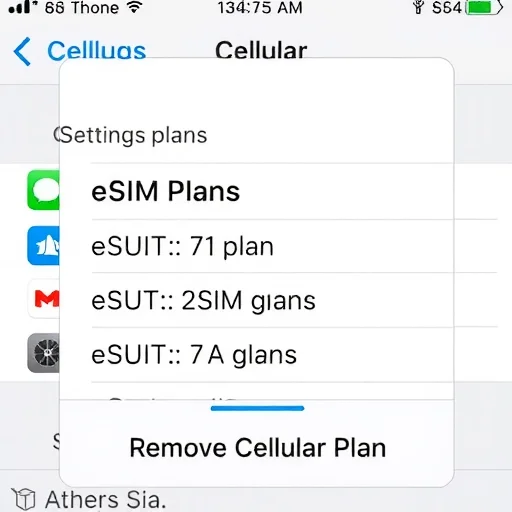
Before you start deleting eSIMs, there are a few critical precautions to take. First and most important: if you’re deleting your primary eSIM—the one you use for daily calls, texts, and cellular data—make sure you have an alternative way to stay connected. If your iPhone uses eSIM as its only active cellular plan and you delete it, your phone will lose all cellular connectivity until you add a new plan. This means no calls, no texts, no cellular data. If you’re switching to a new carrier or a physical SIM, have that ready before deleting. If you’re planning to use a new eSIM from the same carrier, ensure you have the QR code or activation method handy. If you’re simply cleaning up old profiles and your primary eSIM is active, you can safely leave it untouched and only delete the ones you no longer need. Second, if you’re preparing to sell, trade in, or give away your iPhone, deleting all eSIMs is essential. An eSIM profile contains carrier account information tied to your identity. Leaving it on the device could allow the next owner to access services under your account or cause activation conflicts when they try to set up their own service. After deleting eSIMs, you should also perform a factory reset to wipe all personal data, but removing eSIMs first ensures no residual profiles remain. Third, for travel eSIMs that have expired or are no longer needed, there’s no risk in deleting them. They’re already inactive, and keeping them only clutters your settings. If you ever travel to the same destination again, you can simply purchase a new eSIM.
Let’s walk through a few common scenarios where deleting all eSIMs on iPhone makes sense. First, consider Sarah, a freelance photographer who travels internationally for work. Over the past year, she’s accumulated eSIM profiles for trips to Japan, South Korea, Italy, and the UK, plus a secondary eSIM for a US carrier she tested for a month. All of these travel eSIMs have long since expired, but they still appear in her Settings under Cellular Plans. Occasionally, her iPhone tries to auto-connect to one of these expired profiles when signal is weak, causing brief connectivity glitches. She decides to clean up. She opens Settings > Cellular, taps each expired eSIM one by one, scrolls down, and taps “Remove Cellular Plan.” After removing all five expired profiles, her Cellular menu shows only her primary physical SIM and her current active eSIM. The menu is clean, and the occasional connectivity hiccup disappears. If she travels again, she’ll download fresh eSIMs without any old profiles causing confusion.
Second, consider Marcus, who is upgrading from his iPhone 13 to a new iPhone 16. His iPhone 13 has an active eSIM from his carrier as his primary line, plus a physical SIM for a secondary number. Before selling his old iPhone, he needs to remove all personal data, including the eSIM. He goes to Settings > Cellular, taps his primary eSIM, and removes it. He also removes any other eSIM profiles that might be stored. He then performs a factory reset by going to Settings > General > Transfer or Reset iPhone > Erase All Content and Settings. When the new owner receives the phone, it has no cellular profiles, ready for them to add their own. Importantly, Marcus’s carrier account was not canceled by deleting the eSIM—the profile was just removed from that device. When he sets up his new iPhone 16, he can either download a fresh eSIM from his carrier’s app or, if his carrier supports it, transfer the eSIM during the phone setup process.
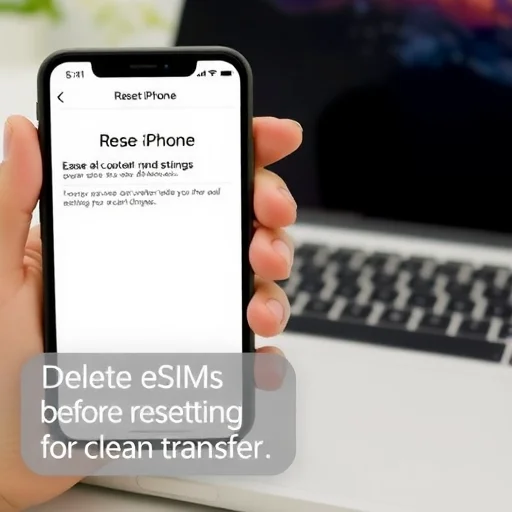
Third, consider a user who purchased a used iPhone online and wants to ensure it’s completely free of any previous owner’s carrier profiles before setting it up. Even after a factory reset, some eSIM profiles may remain if the previous owner didn’t delete them manually. By going into Settings > Cellular and checking for any existing cellular plans, the new owner can delete any lingering eSIMs before adding their own. This is a good practice whenever you acquire a used iPhone.
One common question is whether deleting an eSIM deactivates the service with the carrier. As mentioned earlier, no—deleting the eSIM profile from your iPhone does not cancel your service plan. Your carrier still has your account active. If you’ve deleted an eSIM accidentally, you can usually re-add it by scanning the original QR code again (if you saved it), using your carrier’s app to download the profile, or contacting customer support for a new QR code. For postpaid plans from major carriers like Verizon, AT&T, or T-Mobile, re-adding is typically straightforward. For prepaid travel eSIMs that have already expired, there’s usually no need to re-add them anyway.
Another important point: iPhones can store multiple eSIM profiles but only have two active at a time (one for primary use and one for secondary, such as a travel or work line). If you’ve been traveling extensively and have downloaded many travel eSIMs over time, you might eventually approach the storage limit for stored profiles. Deleting old, inactive eSIMs frees up that storage capacity so you can add new ones when you need them. While the exact storage limit varies by iOS version and device, it’s good practice to regularly clean out expired or unused eSIMs to avoid any potential issues when adding new ones.
If you’re preparing to sell your iPhone or give it to a family member, deleting all eSIMs is just one part of the data-wiping process. After removing eSIM profiles, you should also sign out of iCloud (Settings > [Your Name] > Sign Out), unpair any connected devices like the Apple Watch, and perform a factory reset. For iPhones with iOS 15 or later, the “Erase All Content and Settings” option will also prompt you to remove eSIMs as part of the process, but it’s still a good habit to manually remove them first to ensure no activation lock or lingering carrier issues later. If you’re using eSIM Quick Transfer to move your eSIM to a new iPhone, the transfer process often removes the eSIM from the old device automatically, but double-checking is always wise.
A final scenario worth mentioning is troubleshooting connectivity issues. Sometimes, a problematic eSIM profile—especially one that was partially downloaded or that conflicts with a physical SIM—can cause network connectivity problems. In such cases, deleting the problematic eSIM is often the first step in resolving the issue. If you suspect an eSIM is causing problems, you can remove it and then re-add it fresh if needed.
Deleting eSIMs on iPhone is a simple but important skill for any iPhone user. Whether you’re cleaning up old travel profiles, preparing to sell your device, or troubleshooting connectivity issues, knowing how to remove eSIMs gives you full control over your iPhone’s cellular setup. The process takes only a few seconds per profile, and because you can always re-add a valid eSIM later, it’s completely reversible. So don’t hesitate to clear out the clutter—your Cellular settings menu will be cleaner, and you’ll have peace of mind knowing your old profiles aren’t lingering in the background. Deleting all eSIMs on iPhone requires removing each profile individually. Go to Settings > Cellular, tap each eSIM plan, scroll down, and tap “Remove Cellular Plan.” This does not cancel carrier service—it only removes the profile from your device. Always ensure you have an alternative connection before deleting your primary eSIM, and manually delete eSIMs before factory resetting when selling or giving away your iPhone.
Thank you for this! I had seven old travel eSIMs sitting in my settings from trips over the last two years. Never knew I could delete them. Took two minutes to clean them all out and my cellular menu is so much cleaner now. No more accidentally trying to connect to expired Japanese networks at home!
Your Name
Just upgraded from iPhone 12 to 16 and used this to delete my old eSIM before trading in. Super easy. The “Remove Cellular Plan” button is right there at the bottom of each plan’s page. Took five seconds. Thanks for the clear steps.
Important warning for anyone about to sell their iPhone: don’t just factory reset and assume eSIMs are gone. I did that once and the buyer had trouble activating because my old eSIM profile was still hanging around. Now I always go into Settings and delete all eSIMs manually before resetting. This guide explains exactly how. Perfect.
I wish Apple would add a “Delete All eSIMs” button. I had to remove nine profiles one by one. Not a huge deal but would be nice to batch delete. Still, this guide made it simple. Much appreciated.