
If you’ve ever wished you could have a personal number and a work number on the same device, or keep your home SIM active while traveling without paying outrageous roaming fees, you’re in luck. Modern smartphones—both iPhone and Android—now support using two SIMs simultaneously. This feature, often called Dual SIM, allows you to have two active phone numbers on one device, and it’s a game-changer for travelers, remote workers, and anyone trying to separate work from personal life without carrying two phones. In this guide, I’ll walk you through exactly how dual SIM works, how to set it up on your phone, and the most practical ways to use two SIMs in one device.
First, let’s clarify what dual SIM means today. There are two main configurations. The traditional setup uses two physical SIM cards—one in the primary SIM tray and a second in a secondary tray or a hybrid slot that might otherwise hold a microSD card. This configuration is still common on many Android phones, especially outside the US. The newer, more flexible configuration combines one physical SIM with one eSIM, or in some recent iPhones (US models), two eSIMs with no physical SIM at all. The functionality is the same regardless of the configuration: your phone maintains two active lines, each with its own phone number, and you can choose which line handles calls, texts, and data.
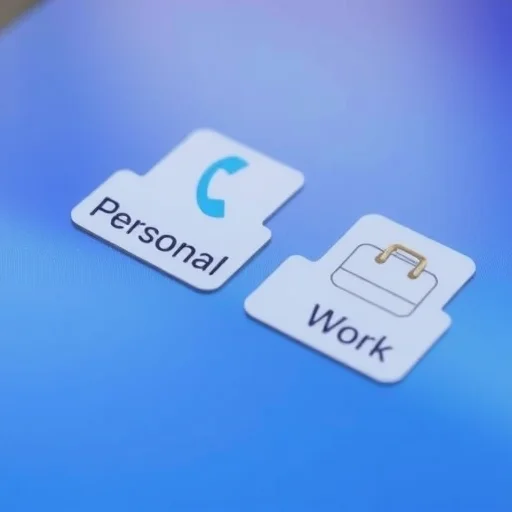
So why would you want two SIMs in one phone? The use cases are numerous. For travelers, the most common reason is to keep your home number active while using a local SIM for data. You avoid roaming charges on your home number because you’re not using it for data, but you still receive calls and texts (often with Wi-Fi calling enabled). For professionals, dual SIM allows you to have a personal number and a work number on the same device, eliminating the need to carry two phones. For frequent travelers to multiple countries, you can keep a local SIM from one country active while adding a travel eSIM for another. For anyone who wants to test a new carrier without porting their number, dual SIM lets you run both side by side and decide which to keep.
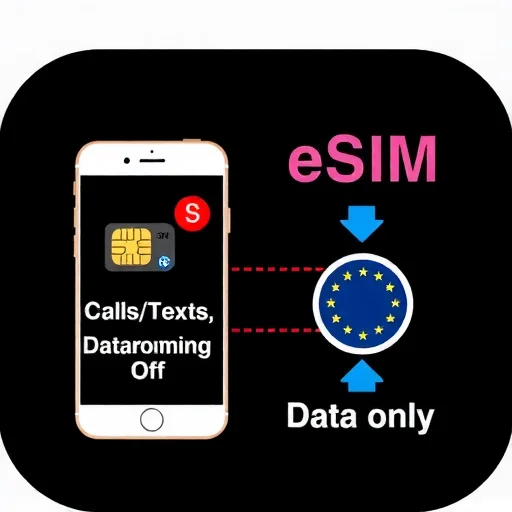
Let’s start with the most practical use case: travel. Imagine you’re traveling from the US to Europe for two weeks. Your home carrier charges $10 per day for international roaming. With dual SIM, you can keep your home SIM active for calls and texts (with data roaming turned off) and add a local eSIM or physical SIM from a European carrier for data. On your phone, you set the local SIM as the data line. You still receive calls and texts on your home number (if you have Wi-Fi calling enabled, those come through over Wi-Fi or even over the local SIM’s data connection on some phones), and you use the local SIM for all your data needs—maps, apps, social media, everything. Your monthly bill from your home carrier remains unchanged, and you pay perhaps $30 for a local data plan. That’s a savings of hundreds of dollars compared to roaming.
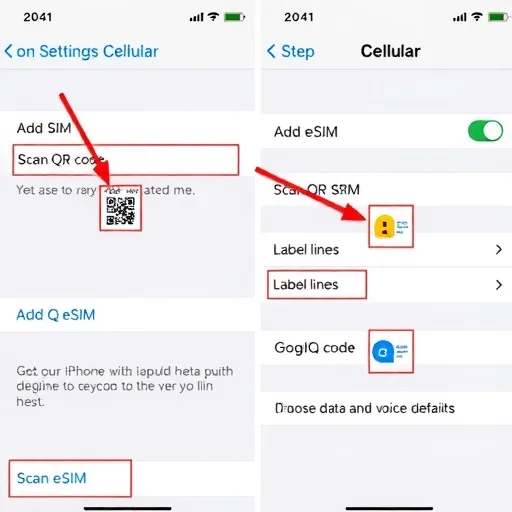
Let’s walk through the setup process. On an iPhone, go to Settings > Cellular. If you have a physical SIM installed, it will appear as one line. To add an eSIM, tap “Add eSIM” and follow the prompts—either scan a QR code from your carrier or use a carrier app. Once both lines are active, you’ll see them labeled as Primary and Secondary (you can rename them to “Personal” and “Travel” or whatever makes sense). Under “Cellular Data,” choose which line you want to use for data. Under “Default Voice Line,” choose which line is used when you make calls unless you specify otherwise. You can also set which line is used for iMessage and FaceTime. The phone handles the rest automatically.
On Android, the process varies by manufacturer but follows the same logic. On a Samsung Galaxy, go to Settings > Connections > SIM Card Manager. Here you’ll see both SIMs, and you can assign which is used for data, which for calls, and which for texts. You can also set a default SIM for outgoing calls, or have the phone ask you each time. The flexibility is similar.
Now let’s look at another powerful use case: separating work and personal life. Sarah is a consultant who has a work phone number provided by her employer, but she doesn’t want to carry two phones. Her company supports eSIM, so she adds her work line as an eSIM on her personal iPhone. Now she has two active numbers. She sets her personal line as the default for calls and texts, but she can choose to call from her work line when needed. She sets her personal line for iMessage and FaceTime, keeping her professional and personal communication separate. At the end of the workday, she can even turn off the work eSIM if she wants to fully disconnect—something you can’t do easily with two physical phones.
For frequent travelers who visit multiple countries, dual SIM with eSIMs is incredibly flexible. You can store multiple eSIM profiles on your phone—for example, a home carrier eSIM, a European regional eSIM, and a Japan eSIM—and have two active at any time. When you travel from Europe to Japan, you simply change which eSIM is active for data. You never need to visit a store or swap physical cards. This is especially useful for digital nomads who move between countries regularly.
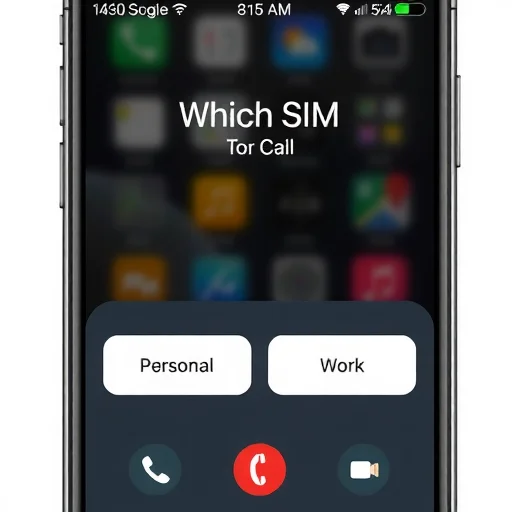
Let’s talk about some practical tips for using dual SIM effectively. First, label your SIMs clearly. Instead of “Primary” and “Secondary,” rename them to something meaningful like “Personal,” “Work,” or “Travel.” This reduces confusion when you’re making calls or choosing which line to use for data. Second, understand how calls and texts work. When someone calls you, both lines will ring if both are active. You’ll see which line the call is coming in on. When you make a call, you can choose which line to use before dialing—on iPhone, tap the current line at the top of the dialer to switch. On Android, the option appears during dialing or can be set per contact.
Third, pay attention to how messaging apps handle dual SIM. iMessage on iPhone can use either phone number or an email address. You can set which number is used for starting new conversations, and your existing conversations will continue seamlessly. WhatsApp, interestingly, doesn’t natively support two numbers on one phone—it ties to one phone number. If you need WhatsApp on both numbers, you may need to use WhatsApp Business for one line or use a different app for the second line. RCS messaging on Android typically works with the default SIM for messaging.
Fourth, be mindful of battery life. Having two active SIMs does consume slightly more battery than one, because the phone is maintaining connections to two networks. In practice, the difference is usually minimal on modern phones, but if you’re in an area with poor signal, both radios will work harder to maintain connections, which can drain battery faster. If you’re traveling and concerned about battery, you can temporarily turn off one line in settings.
One common question is about call waiting and simultaneous calls. If you’re on a call on one line and someone calls your other line, what happens? On most phones, the second call will go to voicemail unless you have call waiting enabled for that line and your carrier supports it. Some phones and carriers support “dual active” calls, meaning you can put the first call on hold and answer the second, but this isn’t universal. Check with your carrier for specifics.
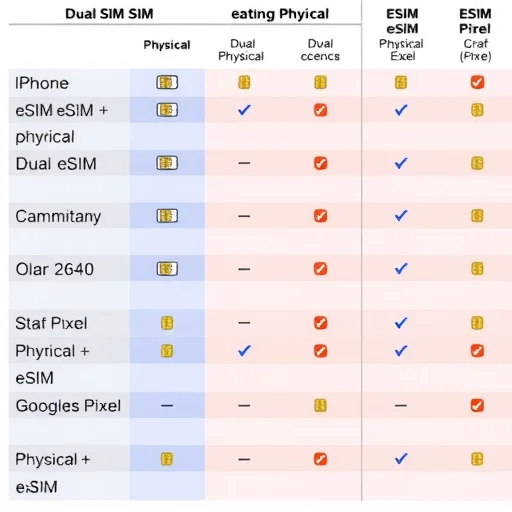
Let’s address compatibility. Most modern phones support dual SIM, but there are variations. iPhones from the XS onward support dual SIM with one physical SIM and one eSIM; US models from the iPhone 14 onward support two eSIMs with no physical slot. Many Android phones from Samsung, Google, OnePlus, and others support dual SIM with either two physical SIMs or one physical plus eSIM. Always check your specific model’s specifications if dual SIM is important to you.
Finally, let’s address the cost. Having two SIMs doesn’t automatically mean double the cost. You’re paying for each line separately, but the flexibility often saves money overall. For travelers, the cost of a local data eSIM is far less than roaming fees. For professionals, having one phone instead of two saves the cost of a second device and simplifies your daily carry. For families, you might have a primary line and a secondary line for a child or for a shared device.
In summary, using two SIMs in one phone is a powerful feature that gives you flexibility you didn’t know you needed. Whether you’re traveling internationally, juggling work and personal life, or simply testing a new carrier without porting your number, dual SIM lets you do it all from one device. The setup is straightforward, the benefits are immediate, and once you get used to it, you’ll wonder how you ever managed with just one SIM. Dual SIM lets you use two phone numbers on one device—ideal for keeping your home number active while using local data abroad, separating work and personal lines, or testing new carriers. Setup involves either two physical SIMs, one physical plus eSIM, or dual eSIM. You can assign which line handles data, calls, and texts independently. Benefits include roaming savings, reduced device clutter, and flexible connectivity for frequent travelers.
The battery thing is real. When I’m in a low-signal area, dual SIM definitely drains faster. But in normal conditions, it’s barely noticeable. I just carry a small power bank for travel days and it’s fine.
Dual SIM saved me on my last trip to Europe. Kept my US number active for iMessage and calls over Wi-Fi, used a local eSIM for data. No roaming charges, and my friends could still reach me on my regular number. So easy I’ll never travel any other way.
I use dual SIM for work/personal separation and it’s perfect. Work eSIM turns off at 6 PM, personal line stays on. No more carrying two phones, no more work calls after hours unless I want them. Mental health win.
I switched to an eSIM for my primary line and now use a physical SIM for travel. Being able to swap travel SIMs without touching my main line is so convenient. Dual SIM is the way to go.
One thing to know: WhatsApp only works with one number per phone. If you need two WhatsApp accounts, you have to use a second app like WhatsApp Business or a different messaging app for the second line. Works fine but good to know ahead of time.