
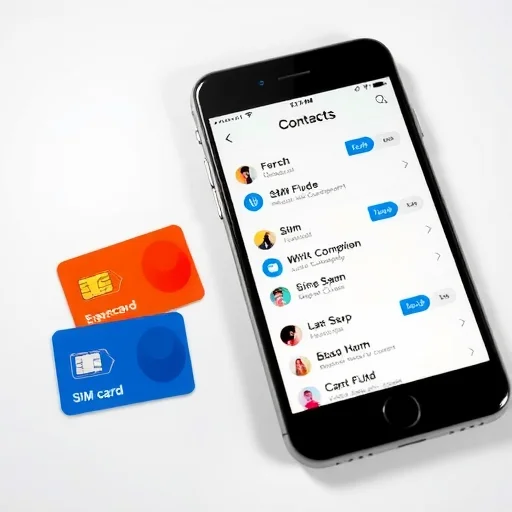
If you’re switching phones, selling your old device, or just want to clean up your contacts, you might have wondered how to delete data stored directly on your SIM card. Unlike phone storage, a SIM card has limited space and traditionally holds contacts, and sometimes text messages or network settings. The good news is that deleting this data is straightforward, but the exact steps vary depending on whether you’re using an iPhone or an Android device. This guide walks you through exactly how to delete contacts and other data from your SIM card, and explains what you can and cannot remove.
First, let’s clarify what’s actually stored on your SIM card. A SIM card primarily stores your subscriber information (your phone number and network authentication details), which you cannot delete without rendering the SIM unusable. What you can delete are the contacts saved to the SIM, and in some cases, text messages that were saved to the SIM rather than your phone’s internal storage. Modern smartphones typically store contacts in the cloud or on the device itself, but if you’ve been using the same SIM for years, you might have old contacts still lingering there. Deleting them frees up space and prevents duplicate entries.
If you’re using an iPhone, Apple does not allow direct management of SIM contacts through the device interface. iPhones store contacts in iCloud or on the phone itself, not on the SIM. However, if you have contacts that were previously saved to your SIM (for example, if you inserted an old SIM from a previous phone), they may appear in your contacts list. To remove them, you have two options. The first is to use a friend’s Android phone temporarily—insert your SIM, delete the contacts using the Android method below, then move the SIM back to your iPhone. The second is to leave them as is; they don’t consume iPhone storage and are essentially dormant. If you’re selling or giving away your phone, the safest approach is to remove the SIM card entirely and perform a factory reset on the iPhone itself.
For Android users, the process is more straightforward. Android devices typically include a built‑in way to view and manage SIM contacts. The exact menu names can vary slightly by manufacturer (Samsung, Google Pixel, Motorola, etc.), but the general steps are consistent.
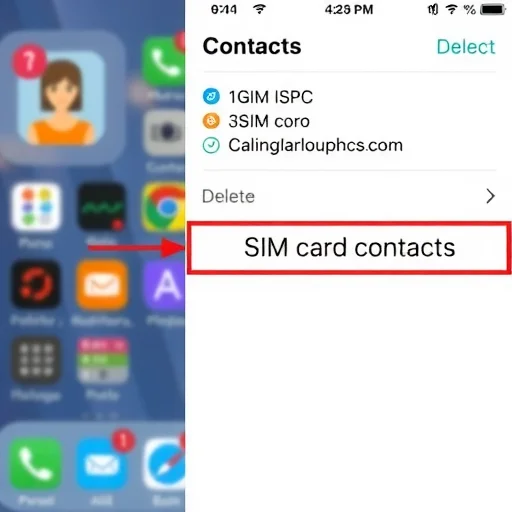
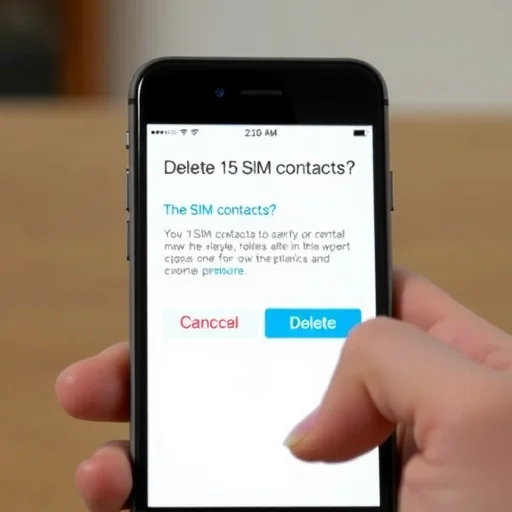
Open the Contacts app (sometimes called “Phone” or “Contacts”). Look for the menu icon—usually three horizontal lines or three dots in the corner. Tap on “Settings” or “Manage contacts.” From there, you should see an option labeled “SIM card contacts” or “Import/Export.” Tap on “SIM card contacts.” This will display a list of all contacts stored on your SIM. You can then select individual contacts or use the “Select all” option, then tap “Delete” or the trash icon. Confirm the deletion, and the contacts will be removed from your SIM card.
If you want to delete text messages that are stored on your SIM, the process is similar but less common because most modern phones store SMS in internal memory. On Android, open the Messages app, tap the menu icon, go to “Settings,” and look for “SIM card messages” or “Manage SIM card messages.” If you see this option, you can view and delete messages stored on the SIM. On iPhone, SMS is never stored on the SIM, so no action is needed.
What about other data? You might wonder if you can delete network settings, carrier configurations, or the phone number associated with the SIM. These are hard‑coded onto the SIM and cannot be deleted without destroying the SIM’s functionality. If you’re planning to sell or recycle a phone, the proper way to remove all personal data is to perform a factory reset of the phone, then remove the SIM card and any external SD cards. The SIM card itself should be kept or physically destroyed if it contains any personal information you’re concerned about.
Now, let’s talk about why you might want to delete SIM contacts. Duplicate contacts are a common annoyance. If you’ve imported contacts from a SIM to your Google account, you might end up with two entries for the same person—one on the SIM and one in the cloud. Deleting the SIM copy cleans up your contact list. Another reason is privacy: if you’re handing over your phone to someone else temporarily, you might not want them to see your SIM contacts. Finally, if you’re switching to a new SIM or an eSIM, clearing the old SIM before disposing of it is a good privacy practice.
I recently helped a friend who had been using the same SIM card for over a decade. She switched to a new phone and suddenly had duplicate contacts everywhere—some from her Google account, some from the SIM. We popped her SIM into an Android phone, followed the steps to delete all SIM contacts, and the duplicates vanished. Her contact list was instantly cleaner, and she didn’t lose any actual contact information because everything was already synced to her Google account.
If you’re moving to a new phone and want to ensure no SIM contacts follow you, here’s a simple workflow. First, if you have an Android phone, back up your contacts to your Google account (this is usually automatic if you’re signed in). Then, delete all contacts from the SIM using the steps above. Now your SIM is essentially “clean.” When you insert it into a new phone, only your Google account contacts will sync, and no old SIM contacts will appear. If you have an iPhone, the SIM contacts are generally irrelevant, but you can still perform a factory reset and remove the SIM to be thorough.
One more scenario: eSIMs. With eSIMs, there is no physical card to remove. Deleting an eSIM from your phone removes the carrier profile entirely. On iPhone, go to Settings > Cellular > select the eSIM plan > tap “Remove Cellular Plan.” On Android, go to Settings > Connections > SIM Manager > tap the eSIM > tap “Remove.” This deletes the eSIM data from your phone, but the eSIM itself remains inactive on the carrier side unless you re‑download it.
Ultimately, deleting data from a SIM card is a simple process on Android, and on iPhone, it’s rarely necessary. The key takeaway: if you need to clean up contacts, use an Android device to manage the SIM directly. If you’re more concerned about privacy when selling a phone, a factory reset combined with removing the physical SIM is the gold standard. With these steps, you can keep your contact list tidy and ensure your personal data stays where it belongs. Deleting contacts from a SIM card is easy on Android: open Contacts > Settings > SIM card contacts > select and delete. iPhones cannot manage SIM contacts directly; use an Android phone as a workaround or factory reset and remove the SIM. Always back up contacts to your cloud account before deleting.
DeleteContactsGuideFINISHED
Just switched to an eSIM and wanted to delete my old physical SIM’s contacts. Used my old Android phone to wipe the SIM before disposing of it. Privacy peace of mind. Great step-by-step.
On iPhone, you really can’t manage SIM contacts directly. I tried for hours before realizing it’s not possible. The workaround with an Android phone worked perfectly. Thanks for the clear explanation.
Important tip: If you delete SIM contacts, make sure your contacts are backed up to your Google account or iCloud first! I almost deleted everything before checking. Good reminder in the guide.
I’ve been using the same SIM for years and had so many duplicate contacts. Finally borrowed a friend’s Android phone, followed these steps, and cleaned everything up in 5 minutes. So satisfying!
I was selling my old phone and wanted to wipe everything. Factory reset plus removing the SIM card did the trick. This guide confirmed I didn’t miss anything. Super helpful.